


XTranslate - Photo, Voice, PDF
4.71.17K Reviews
App Specs
- Version
- 2.1.44
- Updated On
- License
- Free
- Downloads
- 10,000,000+
- Developer
- FALCON GAME
- Categories
- Tools
- Platform
- Android, iOS
Screenshots


 Analysis by AppCompare
When I need to understand a message, label, or page in another language, I want a quick route from the original text to something I can act on. XTranslate - Photo, Voice, PDF brings several translation inputs together in one tools app: photos, speech, text, PDFs, and documents. That range is useful when the material changes from one moment to the next, though I still treat machine translation as a first pass rather than a substitute for careful human review.
Choosing the right starting point
The most useful thing about having several input types in one place is that I can match the method to the material. A short sentence is easiest to type or say, a printed notice is better captured as an image, and a longer file makes more sense as a document translation. That choice can save time: there is little reason to photograph a paragraph I can copy, or to type a whole page that is already in a PDF.
A practical example is arriving at a station in an unfamiliar city. I might photograph a notice first, then use voice translation to ask a nearby person a short follow-up question. Those are different jobs: the image helps me understand fixed text, while speech helps me get through a brief exchange. I would keep the original notice visible and check important details such as platform or departure information rather than relying on a translated phrase alone.
Making the result usable
Translation is only one part of the task. I also need to decide what to do with the result: read it, show it to someone, or use it to make a decision. For a simple sign, a quick glance may be enough. For a school handout or work document, I would compare the translated passage with the source and keep names, dates, measurements, and specialist terms in view. Those details can be easy to misread even when the surrounding sentence sounds natural.
For conversation, I find it helps to keep each turn short and specific. A question such as “Which exit goes to the bus stop?” is easier to handle than a long explanation with several requests in one breath. If the other person’s reply matters, I would translate it back and confirm the key point. This adds a small step, but it reduces the chance of mistaking a fluent-sounding result for a fully understood exchange.
Where convenience has limits
Photo translation is most helpful when the text is clear and the image is easy to read. Glare, unusual fonts, curved packaging, or a crowded page can make recognition less dependable, so I would retake a picture from straight on and check the extracted wording before acting on it. With a long PDF, I would start by translating the section I need instead of treating the whole file as ready-to-use. This is especially important for legal, medical, financial, or safety-related material, where a small wording error can matter.
Offline translation can help when a connection is unreliable, but it is available only for some languages, and the offline selection is narrower than the online one. I would prepare before leaving reliable Wi-Fi by checking whether the language I need is available offline. If it is not, I would not assume that the app can handle an urgent conversation without internet access.
Worth Reading Before You Choose

Baby Panda World Brings Quick Play to Modern Phones, but Its Game Library Feels Busy

ESPN’s Live Game View Makes Following Close Games Easier

QuizzLand Review: A Good Fit for Short Trivia Breaks, Not Every Player

Basketball Stars: Multiplayer Is Fast, but Can It Recover When Matches Go Wrong?

WEBTOON Turns Phone Updates Into a Better Reading Routine

Link to Windows Runs on Shared Habits, Not Social Feeds
Getting Started with XTranslate
First things first, downloading XTranslate - Photo, Voice, PDF is as straightforward as it gets. Available on both Android and iOS, it's just a quick tap away on the app store. Upon launching it, you'll notice a sleek and user-friendly interface. It’s not cluttered, which is a huge relief because, let's be honest, nobody wants to navigate a maze just to translate a sentence.
Features That Make a Difference
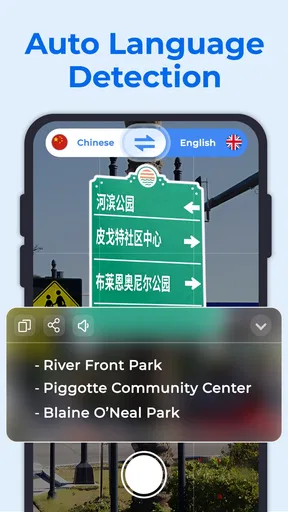
Now, let’s talk about what this app can actually do. The photo translation feature is a lifesaver. Whether it’s a menu, a street sign, or even a document, snap a picture, and voilà, instant translation! The app does a fantastic job of recognizing text and translating it accurately. I tried it on a French menu, and it worked like magic.
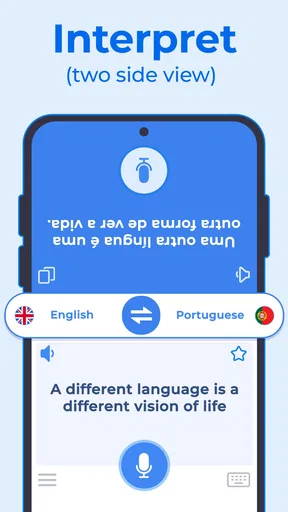
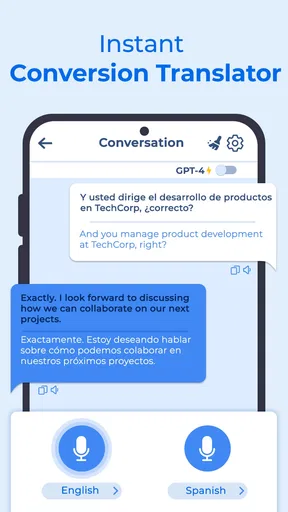
Then there’s the voice translation. Imagine you’re in a bustling market abroad, and you need to ask for directions. Just speak into the app, and it’ll translate your words into the desired language. This feature is not only cool but incredibly practical. It supports a wide range of languages, making it a handy tool for travelers.
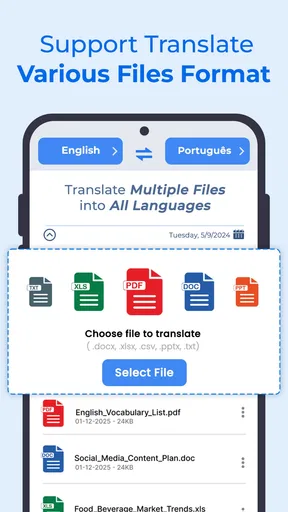
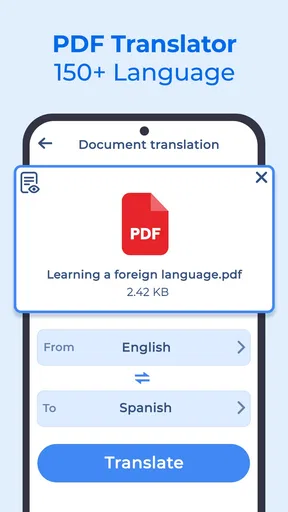
One of the standout features is the PDF translation. If you’ve got documents that need translating, this app has got you covered. Simply upload a PDF, and it translates the text seamlessly. This is particularly useful for business travelers or students who need quick translations of study materials.
User Experience and Performance
Using XTranslate - Photo, Voice, PDF feels smooth and intuitive. The translations are quick, and the app handles multiple languages without breaking a sweat. During my time using it, I didn’t experience any crashes or glitches, which is always a huge plus. It’s apparent that a lot of thought has gone into making this app reliable and efficient.
The app also offers offline translations for some languages. This is a game-changer when you’re in an area with spotty internet. Granted, the number of languages available offline isn’t as extensive as when you’re online, but it’s a helpful feature nonetheless.
Design and Usability
The design is modern and minimalistic. The developers have clearly prioritized functionality and ease of use. The buttons are big enough to tap easily, and the icons are intuitive. You don’t need to dig through menus to find what you’re looking for, which is great when you’re in a hurry.
Moreover, the app doesn’t bombard you with ads, which is a blessing. Nothing kills the experience faster than intrusive pop-ups, and thankfully, XTranslate steers clear of that.
How it fits among translation tools
I see this app as a convenient all-rounder rather than a specialist editor. A basic text translator is often the quicker option for one copied sentence, while a dedicated document workflow may suit someone who needs to revise and format a large file. XTranslate’s appeal is having photo, voice, text, and document translation gathered in one tool, so I can switch methods without starting over in a different app.
That convenience matters most for mixed, everyday tasks: checking a food label, understanding a short message, and asking a question while traveling. It matters less when I need a polished translation for publication or a precise rendering of technical language. In those cases, I would use the app to understand the gist, then have a fluent speaker or qualified translator check the final wording.
Who will get the most from it
For travelers, the strongest use is quick comprehension: menus, signs, and short spoken exchanges. Students can use document translation to get oriented in reading material, then work through the original alongside the translation rather than treating it as a finished explanation. Someone helping a relative understand a simple notice may also appreciate being able to switch between a photo and typed text.
I would be more cautious about recommending it as a daily professional translation system. If your work depends on consistent terminology, document layout, or legally reliable wording, a specialist tool and human review are safer choices. It is also not ideal for anyone who needs a guaranteed offline solution across many languages; the offline option is limited to some languages, so checking availability ahead of time is part of the workflow.
Small habits that improve a translation
With a photo, I try to frame only the text I need, hold the camera steady, and avoid shadows or reflections. If the result looks odd, changing the angle and taking another image is often a better next move than guessing what the sentence means. For a PDF, I look at headings, tables, and labels in the source as well as the translation, since layout can carry meaning that plain translated text does not make obvious.
For typed or spoken input, short sentences usually make it easier to spot a mistake. I also preserve names, numbers, addresses, and units in the original until I have checked them. A useful habit is to ask the app about one idea at a time, then verify the important part by translating the response back or comparing it with the source. This is not a special mode; it is simply a careful way to use any automated translator.
Cost, availability, and fit
XTranslate is free to install, with in-app purchases ranging from $2.49 to $99.99 per item. I would try the free experience against the tasks I actually have before paying for anything: a traveler who only needs occasional signs may have different needs from someone regularly working with documents. The app is rated for Everyone, and its current version is 2.1.26, with Android 8.0 as the minimum operating system.
It is developed by FALCON GAME and has a 4.7 average from around 132,000 ratings, with over 10 million installs. Those figures suggest a well-used option, but they do not tell me whether a particular translation is right, so I still check anything consequential. The practical test is whether its mix of inputs saves me enough switching and typing to earn a place on my phone.
Final Thoughts
In a world that’s more connected than ever, having a reliable translation tool is a must, and XTranslate - Photo, Voice, PDF fits the bill perfectly. Whether you're a traveler, a student, or someone who just loves exploring different cultures, this app is a solid companion.
From translating street signs to entire documents, the app handles it with ease. It’s like having a personal translator without the hefty price tag. So, if you’re looking for an app that’s easy to use, versatile, and reliable, give XTranslate a try. Who knows, it might just become your new favorite travel buddy!
Pros
- Supports multiple languages with high accuracy.
- Easy-to-use interface for quick navigation.
- Offline translation available for certain features.
- Integrates well with other apps for seamless use.
- Regular updates enhance functionality and accuracy.
Cons
- Limited free version functionality.
- Occasional inaccuracies in complex translations.
- Requires internet for some features.
- Ads in the free version can be intrusive.
- Voice recognition may struggle with accents.
FAQs for XTranslate - Photo, Voice, PDF
What platforms does XTranslate support?
XTranslate is available for both Android and iOS devices. The app is designed to work seamlessly on smartphones and tablets, providing users with a versatile tool for translating text from photos, voice input, and PDFs. Ensure your device meets the system requirements for optimal performance.
How does XTranslate handle photo translations?
XTranslate uses advanced optical character recognition (OCR) technology to scan and translate text from photos. Simply take a picture of the text you need to translate, and the app will process and display the translated text in your chosen language. This feature is particularly useful for translating signs, menus, and documents.
Can I use XTranslate offline?
XTranslate offers limited offline functionality. While the app can cache certain translations for use without an internet connection, the full range of translation services requires internet access. This ensures accurate and up-to-date translations, especially for voice and PDF inputs.
What languages are supported by XTranslate?
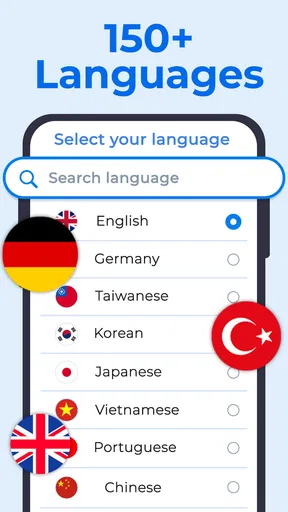
XTranslate supports a wide range of languages, making it suitable for international use. The app regularly updates its language database to include new languages and dialects. Users can select their preferred languages for input and output, enhancing the app's utility in global travel and communication.
Is XTranslate secure for translating sensitive documents?
XTranslate employs encryption to protect user data, but users should exercise caution when translating sensitive materials. While the app is designed to safeguard privacy, it’s advisable not to upload highly confidential documents unless necessary. Always review the app's privacy policy for comprehensive understanding of data handling.


